Roland SPD-SX as your Mandala Sound Source Instead of a Computer!
2/12/2026
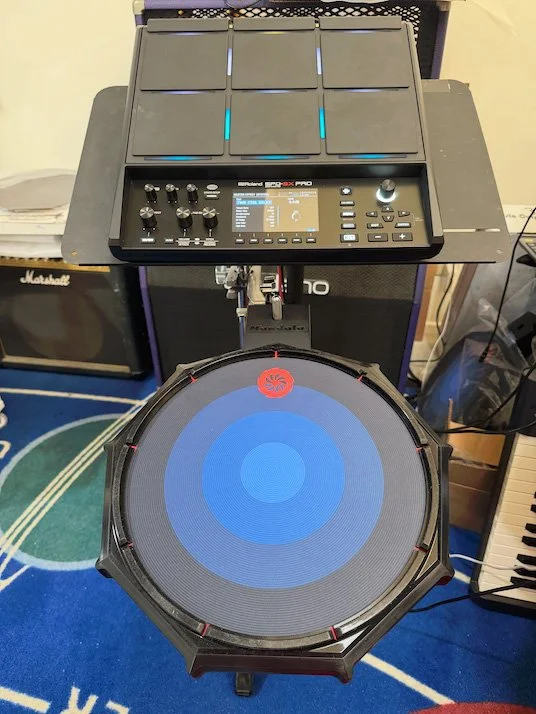
A good way to get rolling with the Mandala V3 + SPD-SX combo is to configure the gear and start triggering SPD factory presets with your Mandala V3. It’s a great way to get familiar with what can be done with this combination of gear.
Here are some quick tips for setting up the SPD-SX Pro to receive MIDI from a MIDI controller such as the Mandala V3:
- On the SPD under Menu>System>System MIDI>Basic make sure ‘MIDI Tx/Rx Sw’ is set to ‘ON’ and ‘Global MIDI Channel’ is set to whatever channel your MIDI Controller is transmitting on. (Mandala default is channel 1)
- On the SPD under Menu>System>System MIDI>Control if you set ‘Master Effect Control CC’ to the CC that the Mandala is sending for Slide (Mandala default for Slide is CC1) then you can slide around and vary the SPD Master Effect.
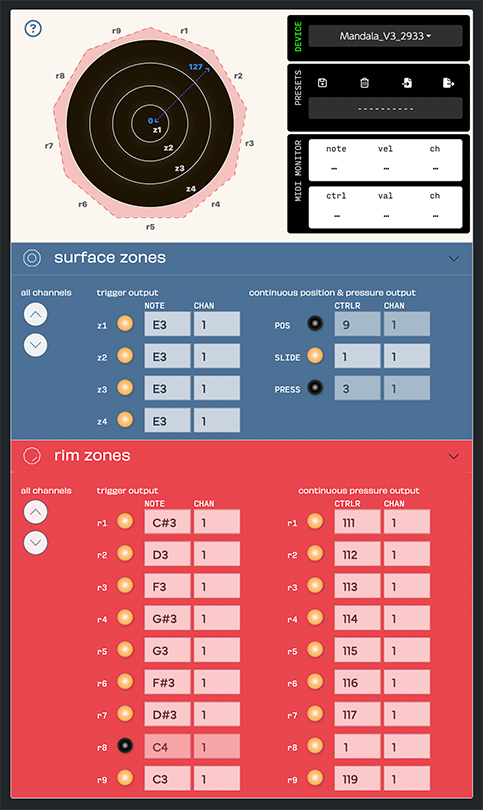
- Next let’s configure the Mandala V3 to play the SPD. Connect your V3 to the V3 Utility App (https://utility.mandalaV3.com) and load preset ‘SPD-SX Pro’ into your pad. Your V3 will now be set like the V3 Utility picture in this blog. Now connect your V3’s 5-pin MIDI port to the MIDI input port on the SPD with a standard MIDI cable.
- And you will also need to power your V3:
Either keep your V3 USB cable connected to your computer for power or disconnect it from the computer and connect it to a standard 5V USB power supply. If you connect to a 5V USB power supply you’ll see the red light turn on under the V3 in 20 seconds when it boots into standalone mode.
- Okay, you should be all set now, as long as you’ve configured your V3 just like in the picture below you can now scroll through the SPD factory presets and hit and slide away on your V3 to experience a whole new way to trigger gear with your pad.
- Once you’ve got the hang of it you can take things a step further. Even when you are triggering sounds assigned to the pads on the SPD with MIDI notes from the Mandala the SPD pads can be set to do other things instead when you actually hit them, like turn effects on and off or change kits. That can be set up on the SPD under Menu>System>Control Setup>Pad. Another option is to set 8 V3 zones to transmit MIDI notes that are assigned to the 8 ‘Trig In’ slots on the SPD. That gives you 9 pads on the SPD for triggering sounds and another 8 on the V3 in order to use SPD sample playback to its fullest.
HAVE FUN!
* If you want to trigger your own custom presets on the SPD and your presets are set to receive different MIDI notes than what is shown in the V3 Utility App picture in this blog please keep in mind when you make adjustments that Roland uses the Middle C is C4 naming convention but Mandala uses the Middle C is C3 naming convention, so on the SPD under ‘Menu>Kit Edit2>Kit MIDI>Note No.’ any notes it shows are actually an octave higher than what the Mandala thinks they are (eg. If you want to trigger an SPD pad that says it’s ‘C4’ then send a ‘C3’ from the Mandala).